The 7 Doctors Hub Help
Follow the instructions below to get started with the 7 Doctors Community Hub
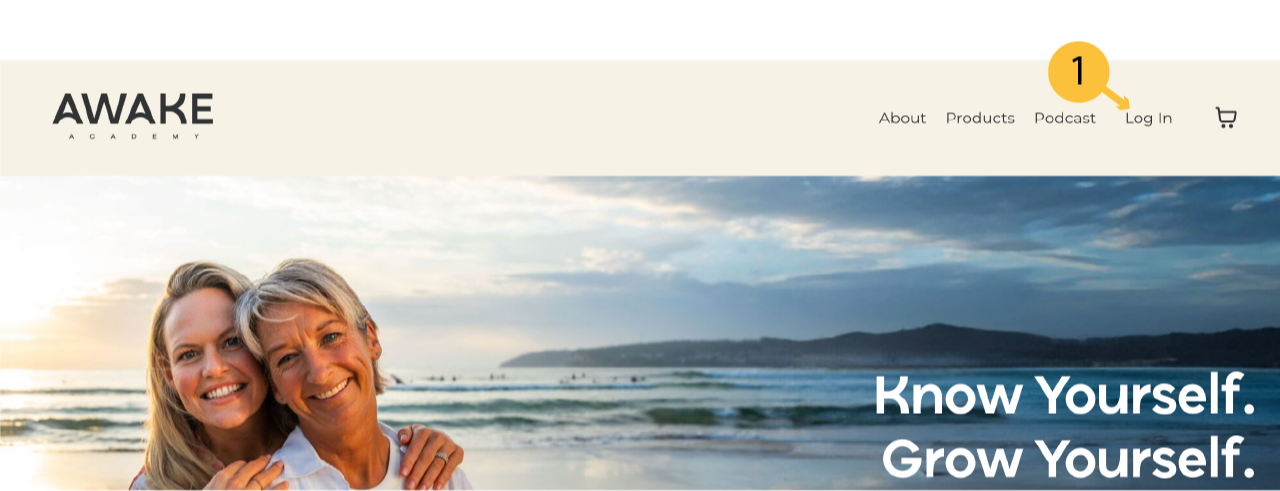
1. Make sure you are logged into awakeacademy.com.au
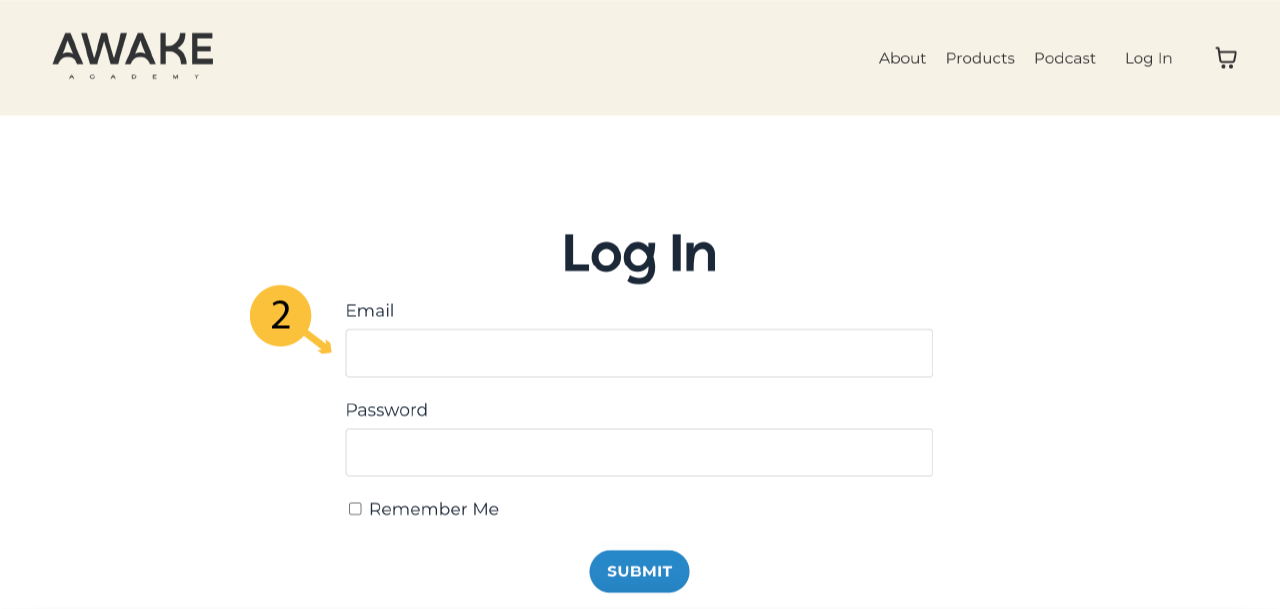
2. Enter the email that you signed up with
(Note: if you can't remember your password, click Forgot Password button at the bottom of the page OR contact us )

3. When you are signed in your will see My Library is showing in your main menu.
Click on My Library
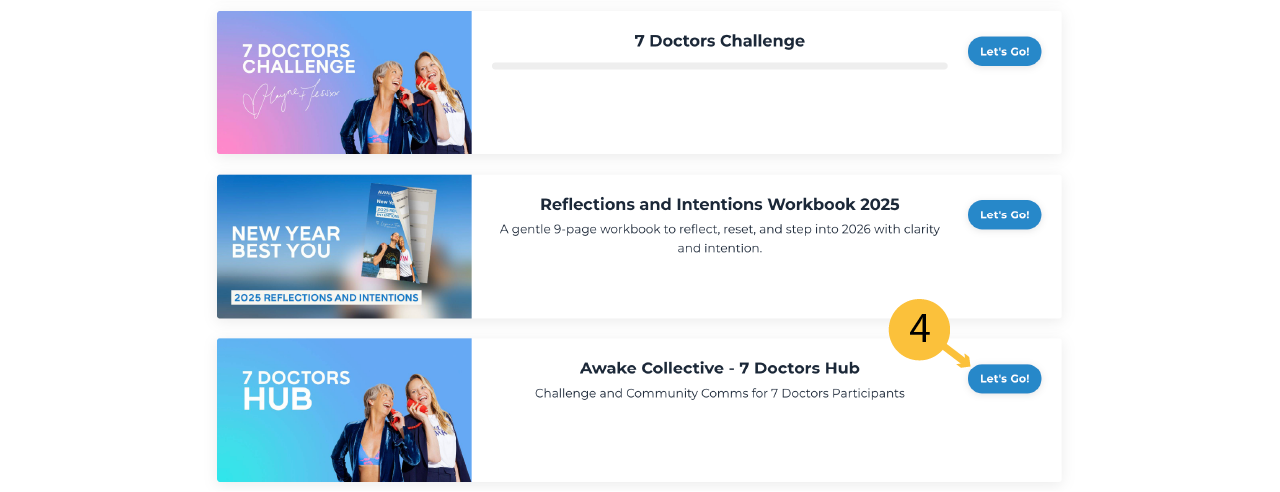
4. In My Library you will see all of the products that you have access to. This includes the 7 Doctors Hub. Click on Let's Go!
Note: The 7 Doctors Hub is the community portal where each week's challenge will be posted AND where you can upload your challenge posts (photos, videos, wins, etc.) This is also where most of the communication for the 7 Doctors will be found.
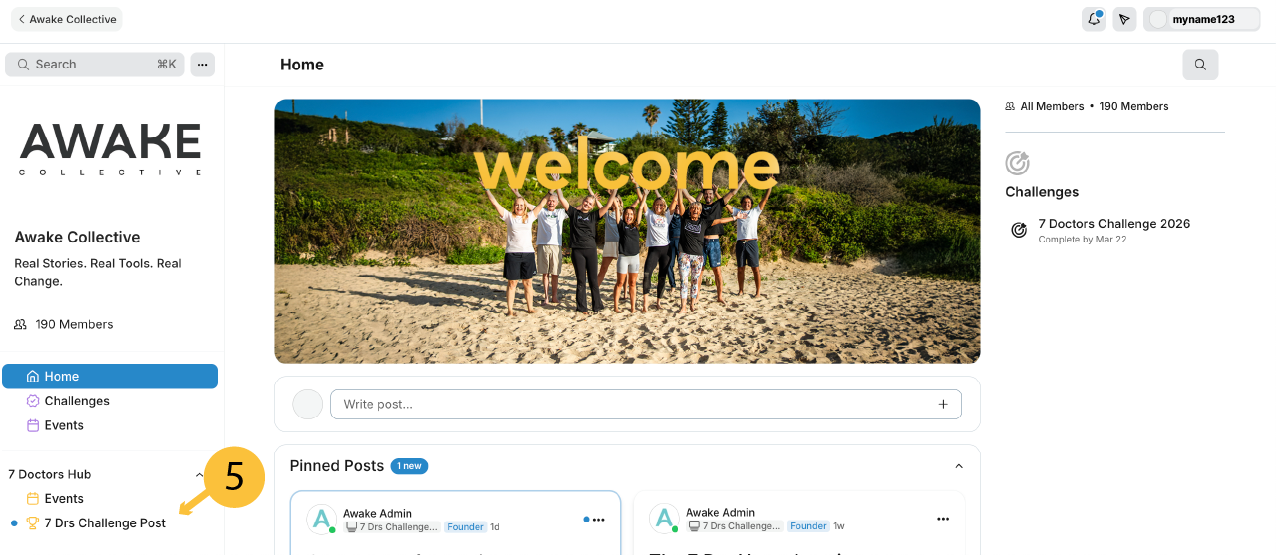
5. In the left sidebar you will see the 7 Drs Challenge Post link. Click on this.
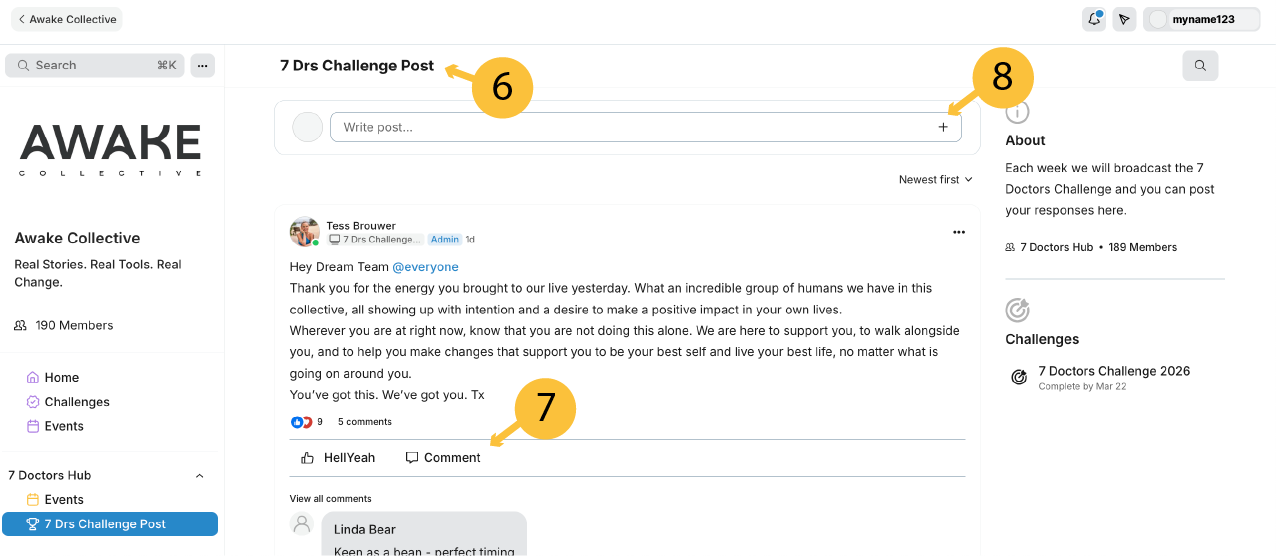
6. In this feed you will see the weekly challenges, prize winner announcements other communication from Awake or members.
7. You can comment on posts by clicking on the comment link at the bottom of each post
8. To create your own post click on the + button
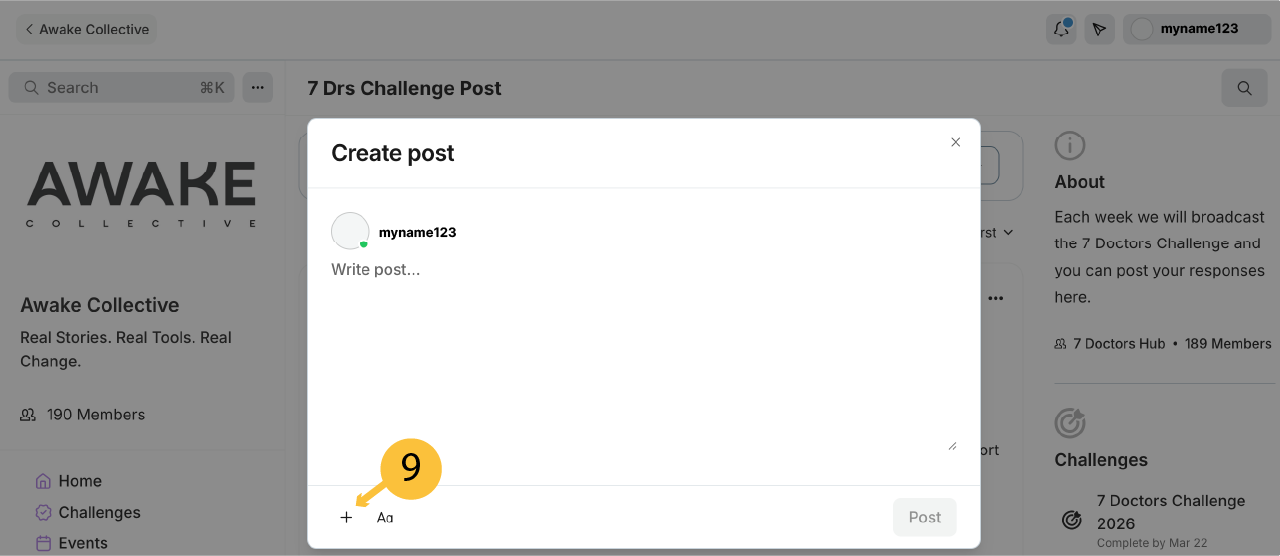
9. Click the + button to open up attachment options (images, videos etc.)
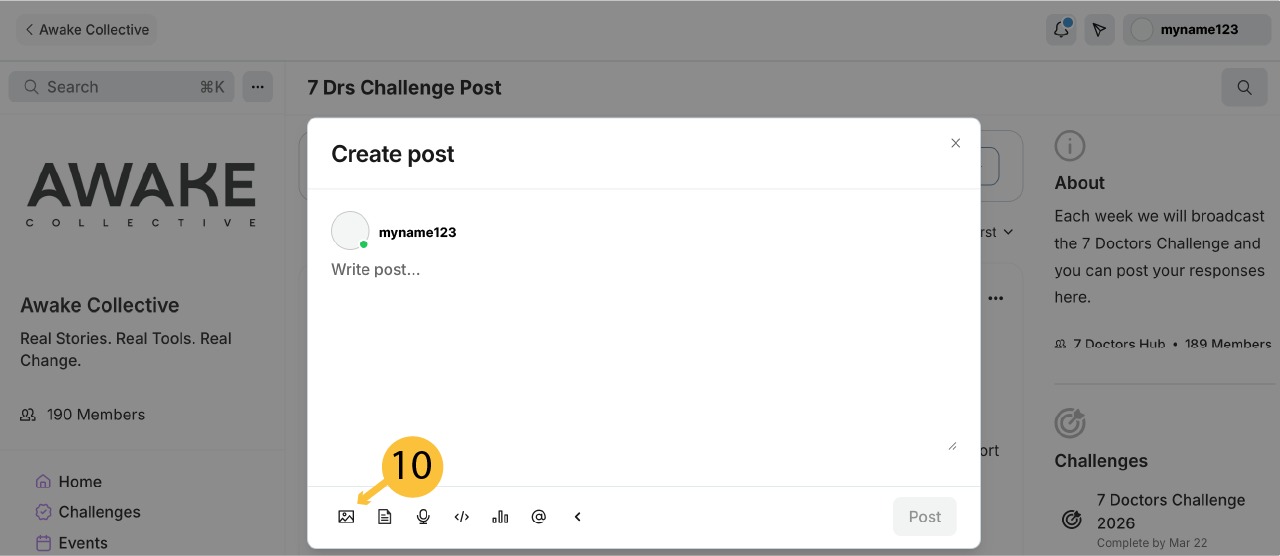
10. Click image icon to upload images or videos from your computer or phone
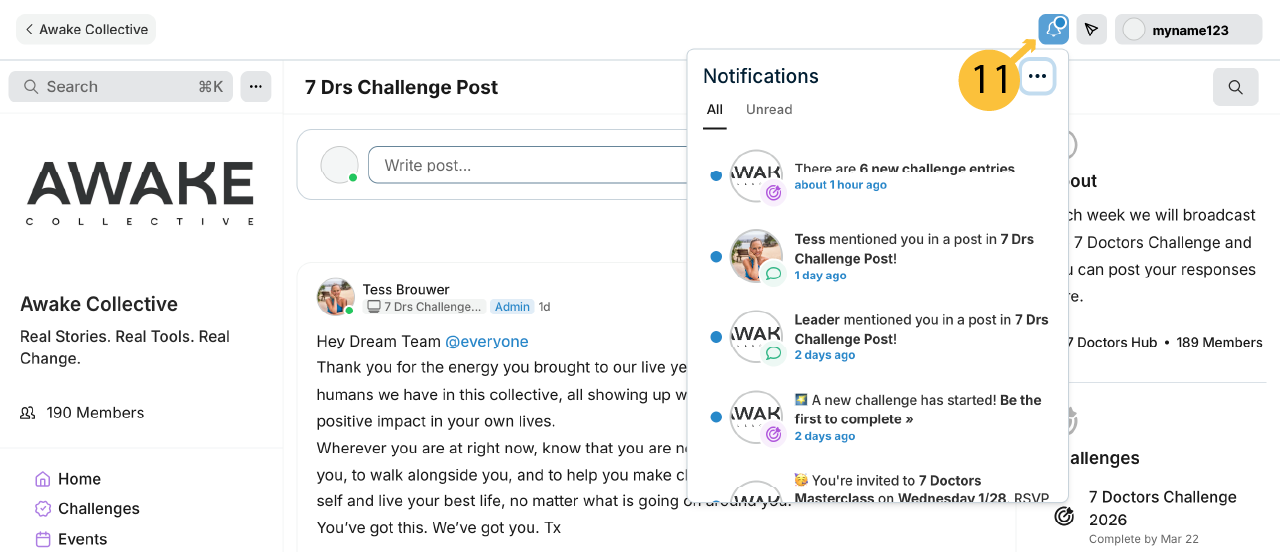
11. Check notifications to see if there is any community activity you have missed. You will see a blue dot if there are new notifications.
Note: Click on the kebab menu (3 dots in the top right corner) to Mark as Read all notifications.
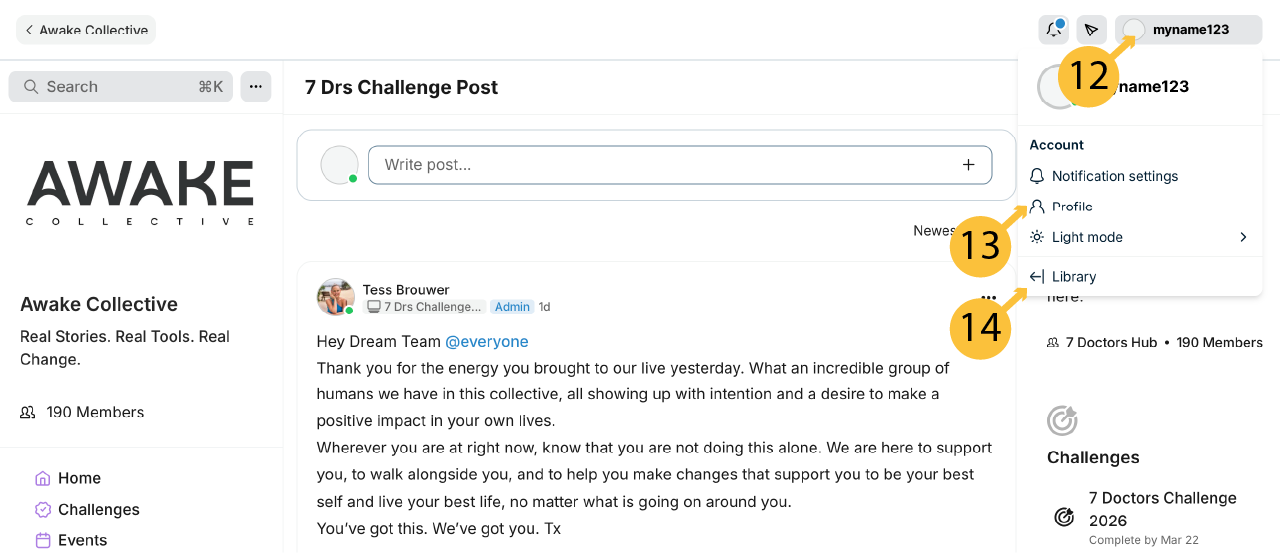
12. Change your Account Settings by clicking on your Avatar/Name in the top right corner of the portal
13. You can modify your Profile and Notification settings here. We encourage members to add a profile picture to be more personable and encourage connection
14. If you want to navigate back to the Awake Academy site to access My Library click on this link